Object removal
10 Best Free AI Object Removers in 2026 (No Photoshop Required)
Ten ways to erase people, signs and clutter from a photo without paying for Photoshop, and what each free version really includes.
By The Erazely TeamPublished 6 min read
A stray tourist, a bin, a traffic cone: one unwanted object can spoil an otherwise good photo. You don’t need Photoshop to fix it. Most AI object removers work the same way: you brush or box the object, and the tool fills the gap with background that matches the scene.
The real differences are in the free versions: export size, daily caps, sign-up rules and how much control you get. Below are ten options, starting with our own free Erazely Object Remover.
The short answer
- For a quick free fix with no account, start with Erazely.
- For heavier edits with layers, Photopea is a free browser alternative to Photoshop.
- Cleanup.pictures and Clipdrop are fast but limit free exports or daily use.
Quick comparison
| Tool | Free to use | Account needed | Main free-tier limit |
|---|---|---|---|
| Erazely | Yes | No | One image at a time, up to 25 MB |
| Cleanup.pictures | Yes | Not stated | Exports capped at 720px |
| Clipdrop | Yes | Not stated | Daily use cap; Pro for high resolution |
| Adobe Express | Yes | Not stated | Limited daily generations |
| Fotor | Preview free | To download | Login needed to save the result |
| Pixlr | Yes (web) | Not stated | Ads; credits on mobile |
| Canva | Pro feature | Yes | Magic Eraser is a Pro tool |
| Photoroom | Yes | Not stated | Weekly and monthly export limits |
| Photoshop | Trial only | Yes | Paid after the free trial |
| Photopea | Yes | No | Ads; manual tools |
The 10 best free AI object removers
01Erazely Object Remover
Open the toolA free, focused cleanup editor that works in the browser.
Upload a photo, brush or box the object, and Erazely rebuilds the area from the surrounding scene. Selections snap to the object under them, shadow included, so a rough box is usually enough. Small repairs run in your browser; larger selections are rebuilt on Erazely’s server and deleted automatically.
Relevant features
- Brush, rectangle and click-to-select tools
- Selections snap to the object and its shadow
- “Try again” to switch engines on a hard fix
- Before/after compare and PNG, JPG or WEBP download
Limitations
- One image at a time; no batch processing
- Very large photos are scaled down before editing
- Removes things only; it can’t add or replace objects
- What’s free
- Every tool is free with no account and no watermark on downloads.
- Best for
- Quick, private cleanups of everyday photos.
02Cleanup.pictures
cleanup.pictures (opens in a new tab)A one-purpose web app for erasing objects, people and defects.
You paint over what you want gone and the AI fills it in. Its own page also mentions text, logos and date stamps.
Relevant features
- Simple brush-and-erase workflow
- Imports images of any size
- Pro adds full resolution and a refiner
Limitations
- 720px free exports are too small for print or large screens
- No layers or manual retouching tools
- What’s free
- Unlimited images, but free exports are limited to 720px.
- Best for
- Fast fixes for small web or social images.
03Clipdrop Cleanup
clipdrop.co (opens in a new tab)The same cleanup technology inside a wider suite of AI tools.
Clipdrop bundles Cleanup with tools like background removal, text removal and upscaling, which is handy if you need several fixes on one image.
Relevant features
- Cleanup plus background and text removal
- Free 2× upscaler
- Pro plan for high-resolution work
Limitations
- Daily caps on free use
- High resolution needs Pro
- What’s free
- Cleanup is free with a daily usage cap.
- Best for
- People who want several AI tools in one place.
04Adobe Express
adobe.com (opens in a new tab)Adobe’s free design app, with generative Remove object built in.
Brush over the object and Adobe’s generative AI fills the space. Because it’s a full design app, you can go straight on to add text or build a post.
Relevant features
- Generative Remove object
- Free background removal
- Templates and design tools
Limitations
- Generative features are rationed on the free plan
- Premium needed for more generative credits
- What’s free
- A free plan with limited daily generations and no payment card.
- Best for
- Social graphics where removal is one step of a bigger design.
05Fotor
fotor.com (opens in a new tab)An all-in-one online photo editor with an AI object remover.
Fotor lets you try removal and preview the result for free with its Standard model. Downloading the result, or using the Advanced model, requires logging in.
Relevant features
- Standard and Advanced removal models
- Full photo editor and templates
- High-res JPG and PNG download
Limitations
- Login required to save
- The free Basic plan has limited credits and normal-quality exports
- What’s free
- Free removal and preview; sign in to download.
- Best for
- Users who also want filters, collages and templates.
06Pixlr
pixlr.com (opens in a new tab)A long-running browser editor with an AI image eraser.
Pixlr’s eraser lives inside a full editor with layers and adjustments. Its FAQ says the eraser is free to use, and that the mobile app charges one AI credit per generation.
Relevant features
- AI eraser plus Heal tool
- Layered editor in the browser
- Exports to JPG, PNG, WEBP and PDF
Limitations
- Ads unless you pay
- Mobile removal uses AI credits
- What’s free
- Free to use on the web, with ads.
- Best for
- People who want a free browser editor with layers.
07Canva Magic Eraser
canva.com (opens in a new tab)Click-to-erase inside the world’s most popular design tool.
Magic Eraser lets you brush or click an element in a photo and remove it. Canva’s own feature pages list it as a Pro tool.
Relevant features
- Magic Eraser, Magic Edit and Magic Grab
- Works inside any Canva design
- Huge template library
Limitations
- Needs Canva Pro
- Needs a Canva account
- What’s free
- Canva has a free plan, but Magic Eraser is a Pro feature.
- Best for
- Existing Canva Pro users editing photos inside designs.
08Photoroom
photoroom.com (opens in a new tab)An e-commerce photo app with a Retouch tool for removing objects.
Photoroom is built for product shots: background removal, studio backgrounds and Retouch for small distractions. Its help center says AI tools count toward the export limit.
Relevant features
- Retouch for objects and blemishes
- Background removal and AI backgrounds
- Batch editing on paid plans
Limitations
- Export caps on the free plan
- Built around product photos, less so general scenes
- What’s free
- A free plan with a weekly and monthly export limit.
- Best for
- Online sellers cleaning up product photos.
09Adobe Photoshop
adobe.com (opens in a new tab)The professional standard, with Remove tool and Generative Fill.
Photoshop gives you the most control: AI removal, healing brushes, layers and masks. Adobe offers its online Photo Eraser for free only as part of the trial.
Relevant features
- Remove tool and Generative Fill
- Spot Healing, Clone Stamp and Content-Aware Fill
- Layers, masks and RAW editing
Limitations
- Paid after the trial
- Generative credits are limited by plan
- More to learn than one-click tools
- What’s free
- A 7-day free trial; after that it’s a paid subscription.
- Best for
- Professional retouching where every pixel matters.
10Photopea
photopea.com (opens in a new tab)A free, Photoshop-style editor that runs in the browser.
Photopea has the classic retouching tools: Spot Healing Brush, Healing Brush, Patch Tool and Clone Stamp. Its documentation says it works on your files without uploading them.
Relevant features
- Spot Healing Brush and Patch Tool
- Layers and PSD support
- Works without uploading your files
Limitations
- Manual tools take practice
- Ads on the free version
- What’s free
- The full editor is free with ads; Premium removes them.
- Best for
- Users who want Photoshop-style control for free.
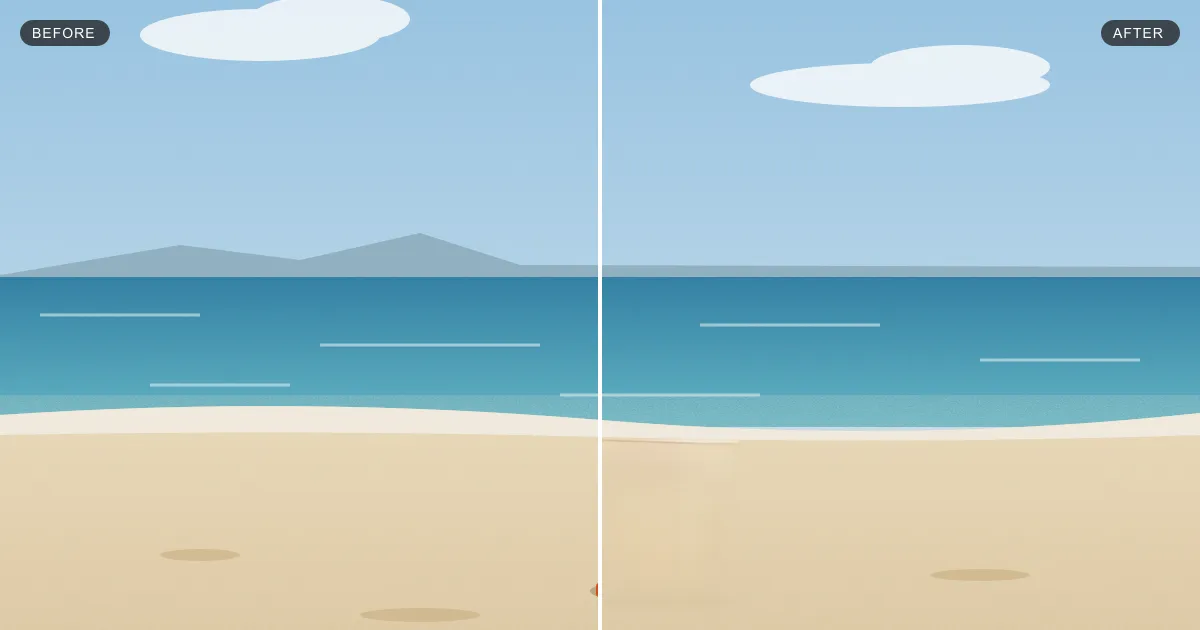
Example: removing a traffic cone with Erazely
We drew this beach scene ourselves and ran it through the Object Remover. Drag the slider to compare.


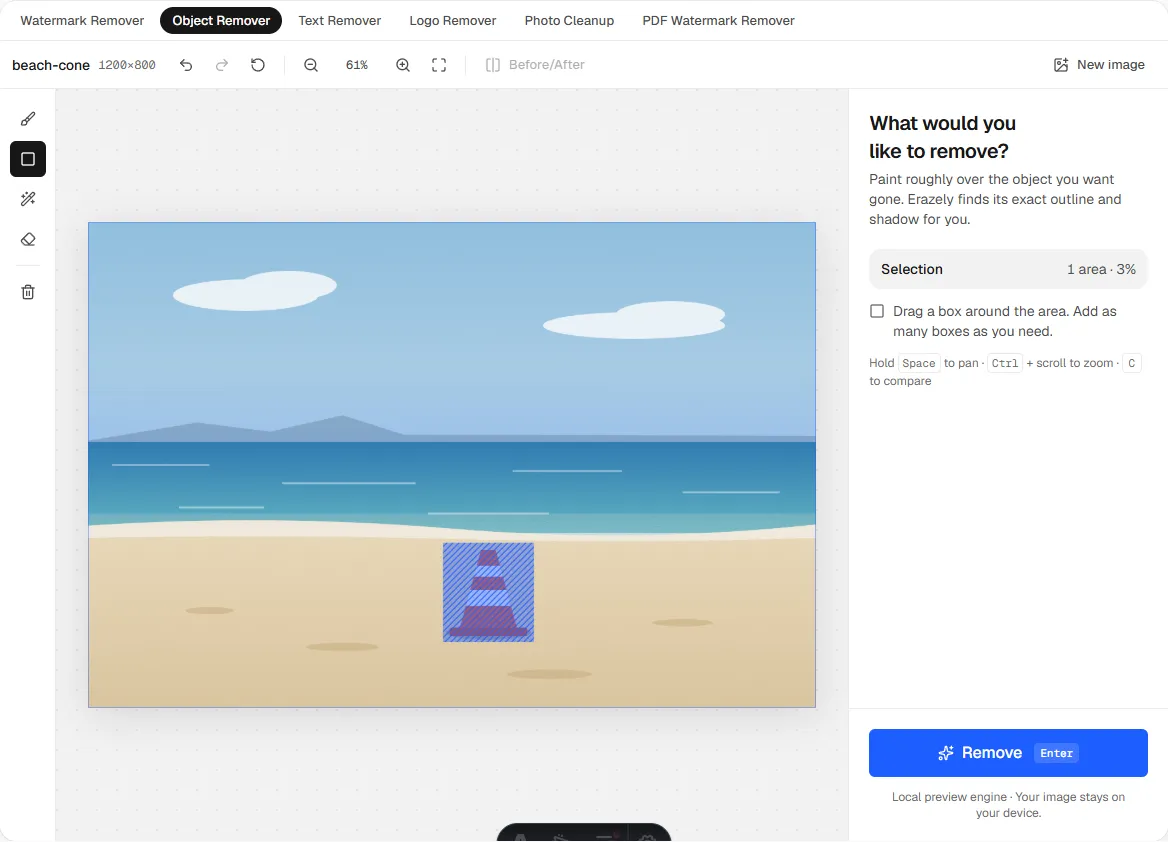
The selection before removal. Box tools snap to the object, shadow included.
Try it on your own photo
Free, no account. Box the object and click Remove.
How to choose
- Small object, plain background: any of these will do. Pick the one with the fewest sign-up steps.
- You need full resolution: check the export limit first. Some free plans shrink your image.
- A large or complex area: try a tool with a retry option, or a layered editor like Photopea for manual touch-ups.
- Part of a bigger design: Adobe Express or Canva keep everything in one place.
If the thing you want gone is text, see our guide to free AI text removers. For dust and scratches, read the best free photo cleanup tools.
How we wrote this. Erazely is our product, which is why it’s listed first. We describe every tool by what its own website says it does, and checked prices, free-tier limits and account rules on. Plans change often, so confirm on the official site before you pay. Erazely isn’t affiliated with or endorsed by the other companies named here. See sources.