Text removal
7 Best Free AI Text Removers: Erase Text from Images Online
Captions, price tags, date stamps and old labels: seven free ways to erase text from an image, and which one suits which job.
By The Erazely TeamPublished 4 min read
Text is one of the most common things people want gone from an image: an outdated price, a date stamp on an old photo, a caption that no longer fits, or a label you need to replace.
Text is also harder to remove cleanly than most objects. It has sharp edges and often sits over detail, so a sloppy fill shows. The Erazely Text Remover finds text for you and rebuilds the area. Below it are six alternatives and what each does best.
The short answer
- Want text found automatically? Erazely highlights it for you to confirm.
- Clipdrop has a dedicated text remover with a generous daily free cap.
- For text over complex detail, Photopea’s manual tools give the most control.
Quick comparison
| Tool | Built for text | Free version | Watch out for |
|---|---|---|---|
| Erazely | Yes, detects text for you | Free, no account | One image at a time |
| Clipdrop | Yes, separate tool | Daily free cap | High resolution is Pro |
| Cleanup.pictures | General eraser | Free | 720px exports |
| Fotor | Yes, separate tool | Free credits to start | Login likely to download |
| Pixlr | General eraser | Free on the web | Ads |
| Adobe Express | General remover | Limited generations | Generative credits |
| Photopea | Manual tools | Free with ads | Takes practice |
The 7 best free AI text removers
01Erazely Text Remover
Open the toolFinds text on its own, then lets you confirm what goes.
When the image loads, Erazely scans for captions, labels and date stamps and highlights them as suggestions. Click Remove on the ones you want gone, or draw your own box. Small repairs run in your browser; larger selections are rebuilt on Erazely’s server and deleted automatically.
Relevant features
- Automatic text and date-stamp detection
- Rectangle tool for tight boxes around lines
- Brush and eraser to refine the selection
- Compare before downloading
Limitations
- Large headline text over busy detail may need a second pass
- It removes text but can’t type new text in its place
- What’s free
- Free with no account and no watermark.
- Best for
- Captions, labels and date stamps on your own photos.
02Clipdrop Text Remover
clipdrop.co (opens in a new tab)A dedicated text tool in Clipdrop’s AI suite.
Clipdrop lists Text Remover as its own tool, separate from Cleanup, and gives it a larger daily free allowance than most of its other tools.
Relevant features
- Text-specific removal
- Cleanup, background removal and upscaling nearby
- Works in the browser
Limitations
- Daily caps
- High-resolution output needs Pro
- What’s free
- Free with a daily usage cap.
- Best for
- Removing text from several images a day for free.
03Cleanup.pictures
cleanup.pictures (opens in a new tab)Paint over the text and let the AI fill it.
Its homepage names text, logos and date stamps among the things it removes. You paint the text by hand; there’s no automatic detection.
Relevant features
- Simple brush workflow
- Handles text, logos and date stamps
- Pro for full resolution
Limitations
- Small free exports
- No automatic text detection
- What’s free
- Free, but exports are limited to 720px.
- Best for
- One-off fixes on small web images.
04Fotor
fotor.com (opens in a new tab)A text remover page inside Fotor’s online editor.
Fotor has a dedicated text remover page next to its object and watermark tools. For its object remover, Fotor says you can preview for free but need to log in to download.
Relevant features
- Text, object and watermark tools
- Full editor and templates
Limitations
- Expect to log in before downloading
- Free credits run out
- What’s free
- Free to try; Fotor gives new users free credits once.
- Best for
- Users already editing in Fotor.
05Pixlr
pixlr.com (opens in a new tab)Select the text with the AI eraser in a full editor.
You select the text and the eraser fills it in. Afterwards you can add new text with Pixlr’s type tools, which is useful for replacing a price or a date.
Relevant features
- AI eraser and Heal tool
- Type tools to add replacement text
- Layers
Limitations
- Ads
- Mobile removal uses AI credits
- What’s free
- Free on the web, with ads.
- Best for
- Removing text and replacing it in one place.
06Adobe Express
adobe.com (opens in a new tab)Generative Remove object works on text too.
Brush over the text and Adobe’s generative fill replaces it. Then use Express’s design tools to add new text in a matching style.
Relevant features
- Generative removal
- Fonts and text styles for replacement copy
- Templates
Limitations
- Generations are limited
- More design tool than quick fixer
- What’s free
- Free plan with limited daily generations.
- Best for
- Reworking a graphic with new text.
07Photopea
photopea.com (opens in a new tab)Manual tools for text over tricky detail.
Use the Spot Healing Brush for small text on plain backgrounds, and the Clone Stamp or Patch Tool where text crosses edges or patterns.
Relevant features
- Spot Healing Brush, Patch Tool, Clone Stamp
- Layers to add new text
- Files stay on your device
Limitations
- Manual work
- Slower than one-click tools
- What’s free
- Free with ads.
- Best for
- Text across patterns, edges or faces of products.
Erazely finds the text for you
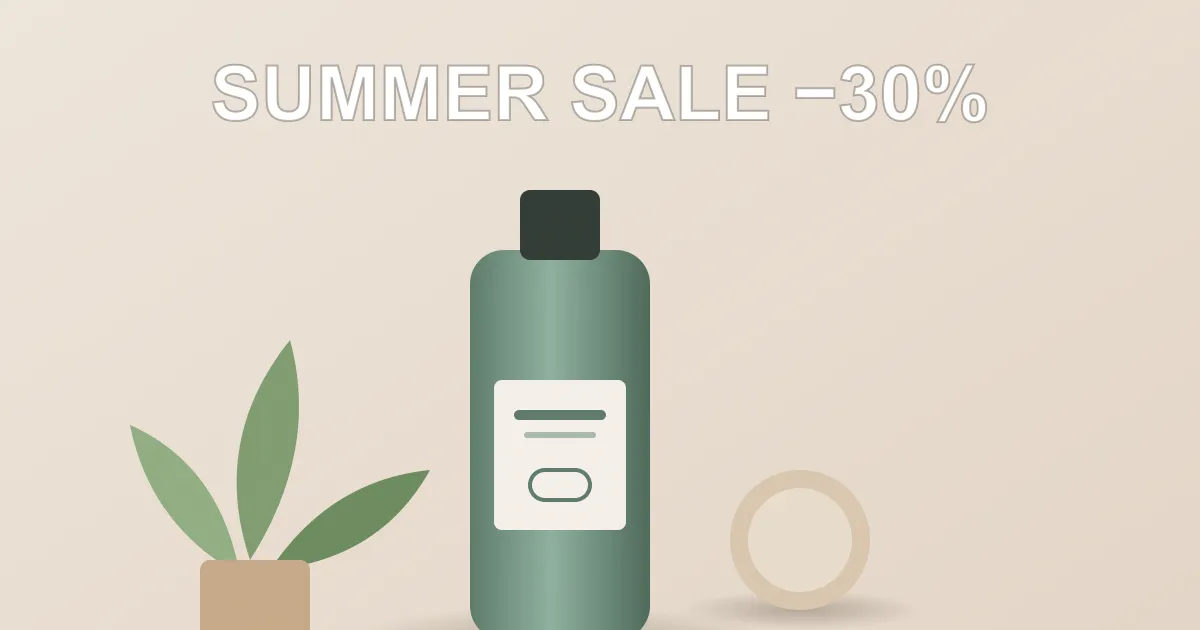
We made a product shot with a promo headline and a shop link, then opened it in the Text Remover. Both lines were highlighted without any manual selection:
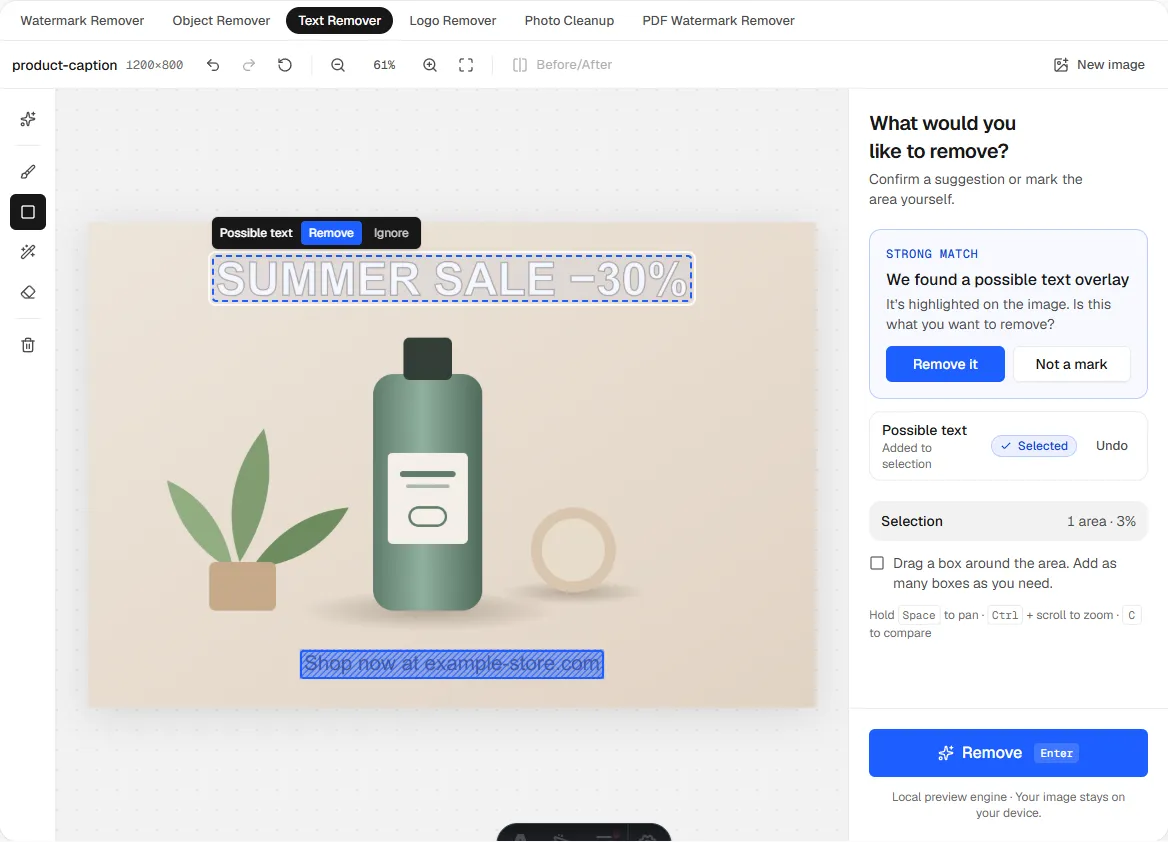
Large, bold headlines over gradients are the hardest case for any remover. If the first result isn’t clean, use Try again or remove the text one line at a time with a tighter box.
Remove text from your image
Free, no account. Erazely highlights the text for you.
Tips for cleaner text removal
- Box each line separately rather than one big box around a paragraph.
- Include the text’s shadow or outline in the selection.
- Start from the original file, not a screenshot, so there’s less compression around the letters.
- If the text is a watermark or logo, our watermark remover guide covers what to check first.
How we wrote this. Erazely is our product, which is why it’s listed first. We describe every tool by what its own website says it does, and checked prices, free-tier limits and account rules on. Plans change often, so confirm on the official site before you pay. Erazely isn’t affiliated with or endorsed by the other companies named here. See sources.