Photo cleanup
10 Best Free AI Photo Cleanup Tools in 2026
Dust on a scan, a stain on a backdrop, a stray hair on a product: ten free tools for the small fixes that make a photo look finished.
By The Erazely TeamPublished 4 min read
“Photo cleanup” covers the small repairs that are easy to miss until a photo is printed or posted: dust and specks on scans, a scratch across an old print, a stain on a backdrop, a stray mark on a product.
These fixes need a light touch rather than heavy generative AI. The Erazely Photo Cleanup tool is built for exactly this: dab over each mark with a small brush and fix them all in one pass. Below are nine more options, with what each one is good at.
The short answer
- For lots of tiny marks, Erazely Photo Cleanup fixes them all in one go, free.
- For restoring faded or torn old photos, Canva and Photoshop offer dedicated restoration features, mostly paid.
- Photopea’s Spot Healing Brush is the best free manual option.
Quick comparison
| Tool | Best cleanup job | Free version |
|---|---|---|
| Erazely | Dust, specks, stray marks | Free, no account |
| Photopea | Manual spot healing | Free with ads |
| Cleanup.pictures | Small defects on web images | Free, 720px exports |
| Clipdrop | Cleanup plus upscaling | Daily free cap |
| Pixlr | Heal tool in a full editor | Free on the web, ads |
| Fotor | All-round retouching | Login to download |
| Adobe Express | Quick fixes inside designs | Limited generations |
| Photoroom | Product photo retouching | Export limits |
| Canva | Restoring old photos | Magic Eraser is Pro |
| Photoshop | Professional retouching | Free trial only |
The 10 best free photo cleanup tools
01Erazely Photo Cleanup
Open the toolMany small repairs in one pass.
Shrink the brush, dab each speck, scratch or stain, and click Remove once. Every marked spot is rebuilt from its surroundings and the rest of the photo is left alone. Small repairs run in your browser; larger selections are rebuilt on Erazely’s server and deleted automatically.
Relevant features
- Adjustable brush size and softness
- Fixes every marked spot at once
- Undo, zoom and before/after compare
Limitations
- Doesn’t restore faded colours, sharpen blur or rebuild torn-away areas
- One image at a time
- What’s free
- Free with no account and no watermark.
- Best for
- Scans, product shots and everyday photos with small blemishes.
02Photopea
photopea.com (opens in a new tab)Photoshop-style healing tools, free in the browser.
Its Spot Healing Brush replaces a marked area with content from around it, and the Patch Tool and Healing Brush handle bigger areas. Photopea says it doesn’t upload your files.
Relevant features
- Spot Healing Brush, Healing Brush, Patch Tool
- Adjustment layers for colour fixes
- PSD support
Limitations
- Manual, one spot at a time
- A learning curve
- What’s free
- Free with ads.
- Best for
- Careful cleanups where you want full control.
03Cleanup.pictures
cleanup.pictures (opens in a new tab)Paint over defects and they disappear.
Built for removing objects and defects in a few strokes, with no editor to learn.
Relevant features
- Brush-and-erase
- Pro “refiner” for higher quality
Limitations
- Free exports are small
- No colour or exposure tools
- What’s free
- Free, with exports limited to 720px.
- Best for
- Quick fixes on images for the web.
04Clipdrop
clipdrop.co (opens in a new tab)Cleanup alongside upscaling and relighting.
Clipdrop pairs Cleanup with tools such as a free 2× upscaler, which helps after you’ve removed marks from a small image.
Relevant features
- Cleanup
- Image upscaler
- Background removal
Limitations
- Daily caps
- High resolution needs Pro
- What’s free
- Free with daily caps.
- Best for
- Cleaning and then enlarging small images.
05Pixlr
pixlr.com (opens in a new tab)A Heal tool with spot and object modes.
Pixlr’s Heal tool has a Spot mode for small marks and an Object mode for bigger ones, inside a full browser editor.
Relevant features
- Heal tool with Spot and Object modes
- AI eraser
- Layers and adjustments
Limitations
- Ads
- Mobile AI tools use credits
- What’s free
- Free on the web, with ads.
- Best for
- Spot fixes plus colour and exposure edits.
06Fotor
fotor.com (opens in a new tab)Retouching and object removal in one editor.
Fotor combines removal with filters and portrait retouching. You can preview for free; downloading requires an account.
Relevant features
- Object remover
- Retouching and filters
- Templates
Limitations
- Login to download
- Free Basic plan exports at normal quality
- What’s free
- Free preview; log in to download.
- Best for
- All-round touch-ups and quick edits.
07Adobe Express
adobe.com (opens in a new tab)Quick generative fixes inside a design app.
Remove object handles distractions, and the editor has basic adjustments for brightness and colour.
Relevant features
- Generative Remove object
- Background removal
- Basic adjustments
Limitations
- Generative use is limited
- Not built for detailed retouching
- What’s free
- Free plan with limited daily generations.
- Best for
- Cleaning a photo before using it in a design.
08Photoroom
photoroom.com (opens in a new tab)Retouch for product photos.
Photoroom’s Retouch removes smudges and distractions on product shots, next to its background tools.
Relevant features
- Retouch
- Background removal
- Product templates
Limitations
- Exports are capped
- Focused on products
- What’s free
- Free plan with weekly and monthly export limits.
- Best for
- Sellers tidying product images.
09Canva
canva.com (opens in a new tab)Old-photo restoration with Magic tools.
Canva’s photo restoration page pitches Magic Eraser, Magic Edit and Magic Expand for creases, tears and discoloration. Its pages list these as Pro tools.
Relevant features
- Magic Eraser and Magic Edit
- Restoration workflow
- Designs and prints
Limitations
- Pro needed for Magic Eraser
- Account needed
- What’s free
- Canva has a free plan; the Magic tools used here are Pro.
- Best for
- Canva Pro users restoring family photos.
10Adobe Photoshop
adobe.com (opens in a new tab)The deepest toolset for retouching.
Healing brushes, Content-Aware Fill, Remove tool and Generative Fill, plus full colour correction.
Relevant features
- Spot Healing and Remove tool
- Dust & Scratches filter
- Layers and masks
Limitations
- Subscription after the trial
- Steep learning curve
- What’s free
- Free trial, then paid.
- Best for
- Professional restoration and retouching.
Example: a quick cleanup with Erazely
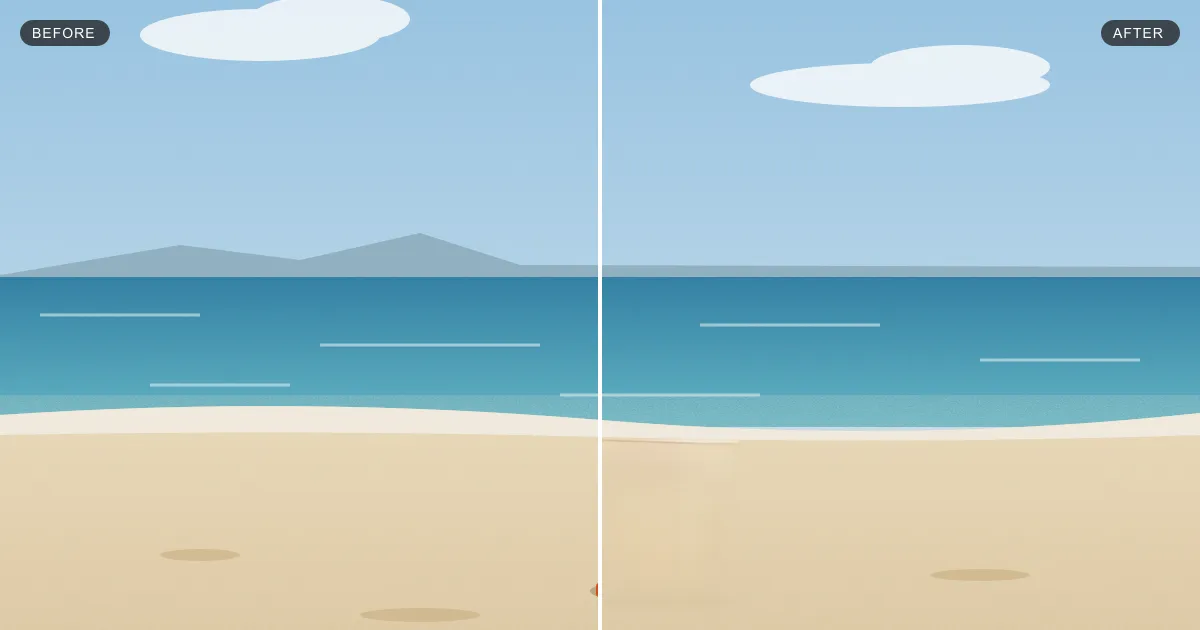
Cleanup and object removal use the same Erazely editor. Here a stray traffic cone is removed from a beach scene we drew; the same steps work for a stain or a speck.


Clean up your photo
Free, no account. Dab the marks, click Remove.
Tips for better cleanups
- Zoom in and use the smallest brush that covers each mark.
- Fix all the small marks first, then deal with bigger objects separately.
- Scan old prints at a high resolution; tiny dust is easier to fix when it’s more than a few pixels wide.
- For anything larger than a speck, see the best free AI object removers.
How we wrote this. Erazely is our product, which is why it’s listed first. We describe every tool by what its own website says it does, and checked prices, free-tier limits and account rules on. Plans change often, so confirm on the official site before you pay. Erazely isn’t affiliated with or endorsed by the other companies named here. See sources.